
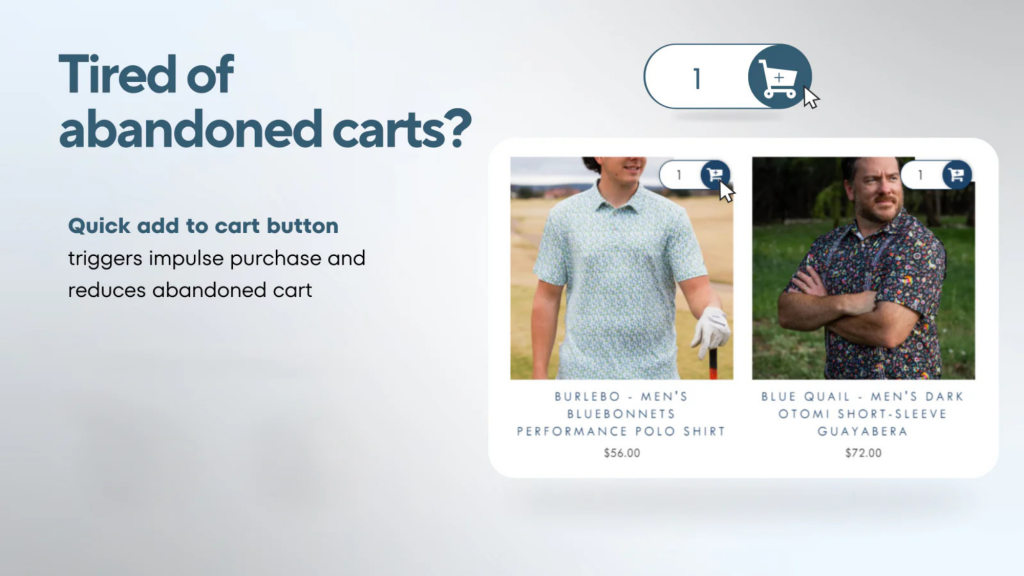
In the fast-paced world of ecommerce, speed and simplicity are key. Every second a customer spends trying to find out how to add a product to their cart brings them closer to losing a sale. That is where the Icon Button Widget from WizeSaaS’s Quick Buy Button shines. This simple, highly adjustable widget alters your user experience with one minimal concept:
“Add to cart in a click, from anywhere on the page.”
In this guide, we’ll explain what the Icon Button widget is, how it works, why it’s so powerful, and how to use it effectively on your Shopify store.
Table of Content
- What is the Quick Buy Icon Button on Product list?
- Why Use the Icon Button? The Psychology behind the Click
- Key Features That Make the Icon Button Stand Out
- Customizing the Icon Button Like Never Before
- Smart Store Strategies with Icon Buttons
- How to set up quick buy add to cart icon button on Shopify store collection pages or product lists
- Combine with other widgets for power boosts
- FAQs
- Final Thoughts
What is the Quick Buy Icon Button on Products list ?
The Icon Button is one of the most modest yet effective widgets in the Quick Buy Button collection. Unlike typical huge concept of buying products, the Icon Button combines instantly identifiable cart icons with strong smart functions to provide a seamless one-click shopping experience.
When it comes to removing the barrier between “just browsing” and “buying now,” the Icon Button widget from the Quick Buy Button by WizeSaaS App is an effective solution. The Icon Button is a clear visually-driven CTA (Call-to-Action) that increases conversions without overloading your product or collection pages.
Example use case:
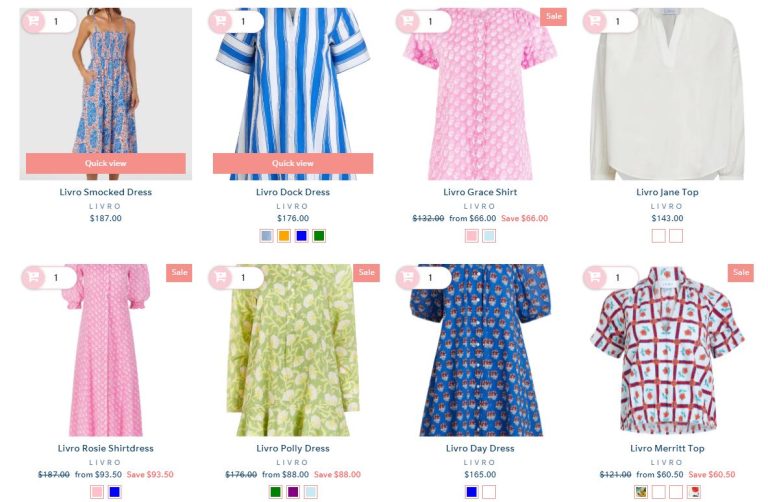
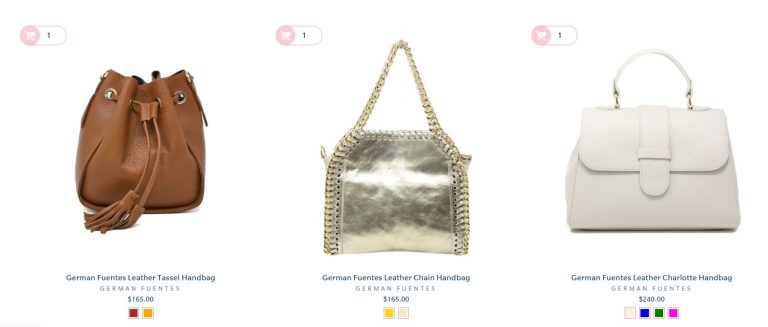
Consider that you’re browsing a clothes store collection page. Instead of going through to each product, the Icon Button lets you to add products directly from the list, avoiding page reloads and cart redirects.
Why Use the Icon Button? The Psychology behind the Click
Consumers who shop online are overwhelmed with options and usually quit carts due to long, exhausting purchasing processes.
Here’s what the Icon Button fixes:
- Reduces clicks to checkout
- Blends perfectly with the the product images
- Mobile-optimized and thumb-friendly
- Increased unexpected spending on trendy or discounted items
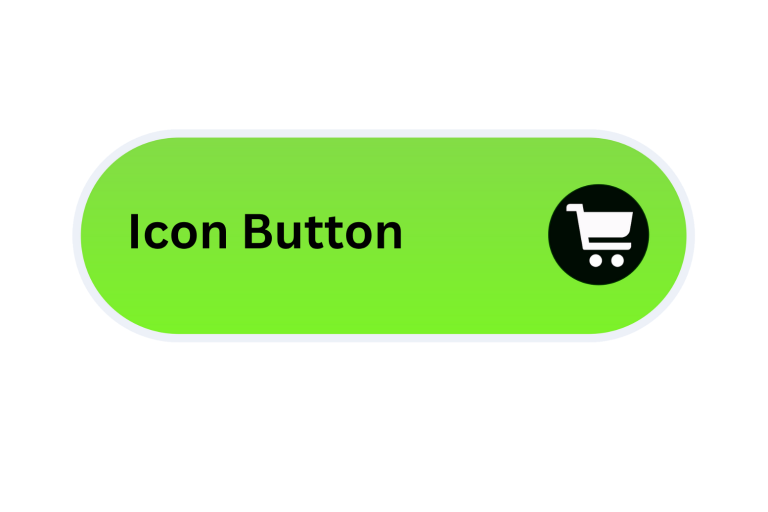
The button includes recognizable icons e.g(shopping cart and Plus icon) that can be understood instantly without reading!
Key Features That Make the Icon Button Stand Out
Here’s what the Icon Button stands out in the ecommerce toolkit:
1. One-Click Add to Cart
- Customers can add products to their cart with a single tap, whether from the collection, home, or specified section.
- Ideal for businesses with returning consumers or products that can be purchased quickly, such as groceries, accessories, and supplements.
2. Dynamic Behavior
- Smart variation handling is enabled if variants are required
- The icon has an optional quantity selection (hover or expand action)
- Animations and tooltips to improve user experience
3. Completely Customizable Position
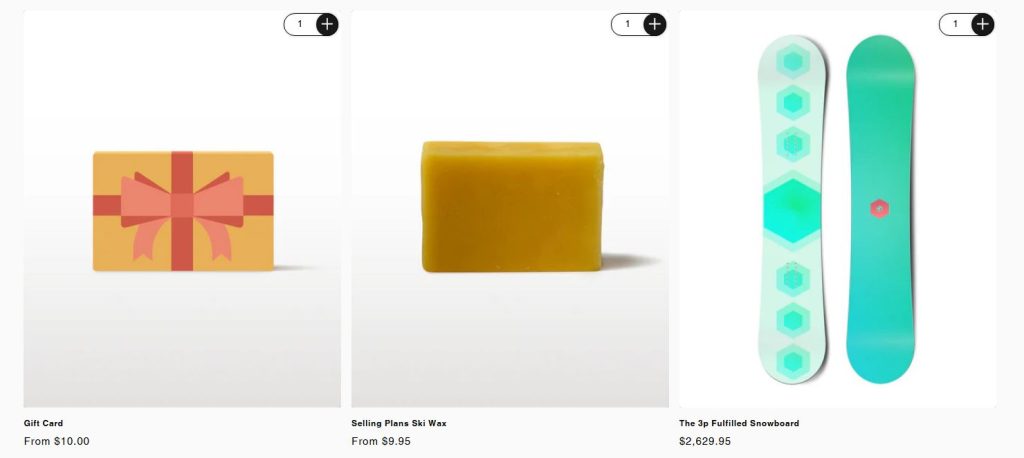
- Position of the icon is configurable to any corners in the product tile in a product list view
- Place it under thumbnails or next to product titles
- Place it inside other widgets to create bundled deals or featured grids
4. Minimal Design with Maximum Impact
- Select from various cart icons (Icon Button, Plus Icon Button).
- Fully resizeable and color-customizable.
- There is no clutter—just one elegant icon placed exactly where you want it.
Customizing the Icon Button Like Never Before
It is important to consider your brand. Your design follows accordingly. That is why the Icon Button offers:
Customizable icon sets
- Use built-in icons and emojis, or add your own SVG.
- Match the cart icon with your theme or create seasonal variants.
CSS-Free Styling
- Customize color, size, border, and hover effects using the no-code dashboard.
- Stores that prioritize mobile should have responsive design.
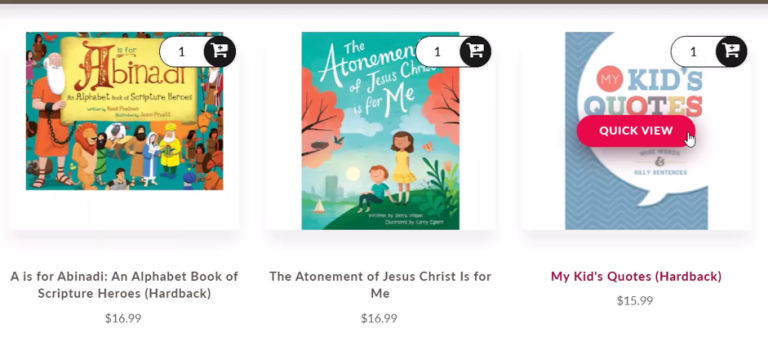
Pro Tip: Combine Icon Button with Quick View Popups for quick product selection without disturbing browsing.
Smart Store Strategies with Icon Buttons
Let’s have a look at a few innovative ways to use the Icon Button widget effectively.
1. Conversion Boosters on Collection Pages
Add the icon under each product thumbnail so that customers may add items to their cart as they scroll. Ideal for fashion and gift stores.
2. Cross-Sell Accelerators
Include icons in related product sliders. Cross-selling with only one click, no page loads needed.
3. A/B Test Icon Positions
To find out which layout works best for your audience, compare left vs right and auto vs fixed positions.
4. Match Icon Color with Brand Identity
Make the icon a seamless part of your theme, or use contrasting colors to increase visibility.
How to Set Up Quick Buy Add to Cart Icon Button on Your Shopify Store collection pages or product lists
Here’s how to launch your first Icon Button in under 5 minutes:
Step 1: Install the Quick Buy Button App
Click here to install →
Open the app and got to the Quick Buy Button.
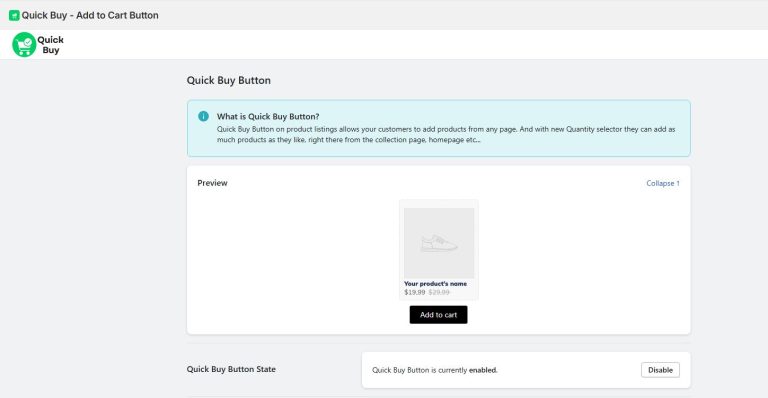
Step 2: Select the “Icon Button”
Navigate to Widgets > Add A New Widget > Icon Button
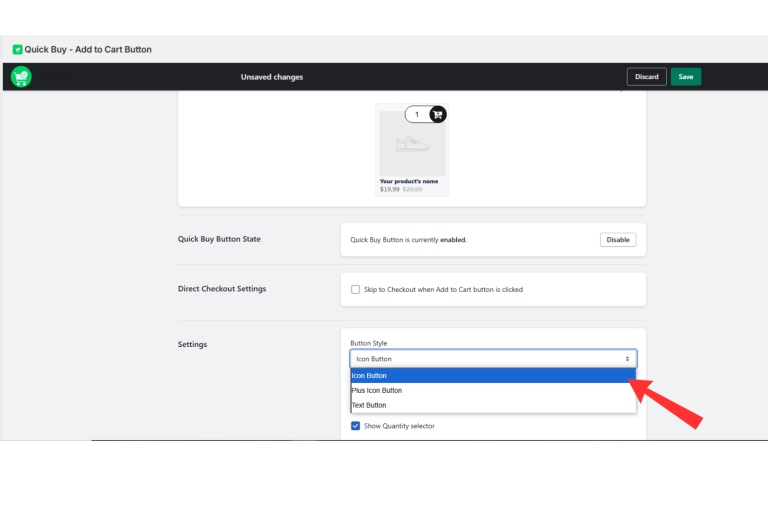
Step 3: Customize the design
- Select the icon type (cart, plus, SVG)
- Choose size, colors, and border
- Add animations or tooltips (optional)
Step 4: Set Display Rules
- Select whether it appears on the collection, homepage, or custom pages
- Set visibility conditions (e.g., mobile only or logged-in users only)
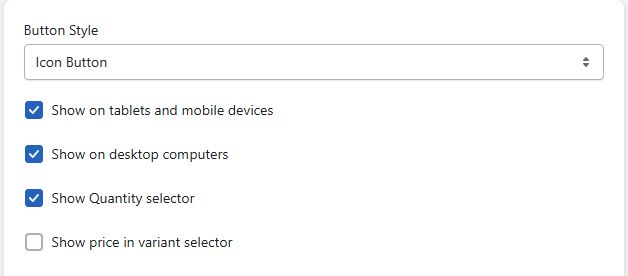
Step 5: Save
Hit Save, and you’re on your way to conversion.
Combine with other widgets for power boosts
The Icon Button is excellent alone, but it works even better when combined with other widgets in the Quick Buy Button Suite:
Widget Name
Quick View Popup
Buy Now button
Best Combo Use
Allow users to select variants before adding
Skip the cart and go straight to the checkout
FAQs
Q1: Does it work with Shopify themes?
Yes. The Quick Buy Button app is built to work with a lot of popular Shopify themes and is easily customizable through the WizeSaaS dashboard.
Q2: Can I only use the Quick Buy Icon Button on mobile?
Yes, you can display it only on mobile, only on desktop, or both, based on your audience’s preferences.
Q3: Does it slow down my website?
No. All widgets are lightweight, optimized, and loaded immediately to avoid performance issues.
Q4: Can I customize the icon?
Yes, you can change the icon style, color, click effect, and other settings straight from the admin panel—no code necessary.
Final Thoughts
The e-commerce landscape is getting more visually appealing, mobile, and fast-paced. The Quick Buy Icon Button by WizeSaaS solves all three pain points: speed, simplicity, and style. Whether you have a single product store or a huge catalog, this small but powerful button can make a significant difference in click-through rates and overall sales.
The Quick Buy Icon Button is more than simply a stylish addition to your storefront; it’s a strong ecommerce tool design to enhance the consumers experience and generate actual sales. It enables users to instantly add multiple products from the homepage or collection pages, saving them time and improving convenience. This frictionless experience increases conversions, particularly when combined with features such as Skip to Checkout, which reduces steps and distractions during the purchasing process. The Quick Buy Icon Button reduces the process to purchase while enhancing usability on mobile and desktop, resulting in lower cart abandonment rates and increased overall sales. In a competitive ecommerce industry where speed and simplicity are frequently linked to success, this tool gives your store a distinct advantage.
Are you ready to try it? Launch the Icon Button in your store today!
Join us as you begin your Shopify journey
We are e-commerce specialists and Shopify Partners. Get in touch with us if you need assistance with Shopify, need a whole website built, or have any other general questions.