
Running an online store is now more convenient than ever in today’s frantic digital environment. The ability to run your e-commerce business while on the go is only one of the numerous benefits of technology. You can now print shipping labels directly from your smartphone thanks to the Shopify Mobile App. You won’t need to look for a computer or printer anymore; all it takes are a few easy steps. We’ll walk you through printing shipping labels with the Shopify Mobile App in this guide.
With the Shopify mobile app for iOS and Android, you can now add to everything else you can do to operate your business from your phone, anytime, anywhere. Printing shipping labels from your phone is part of this.
Table of Contents
- Introduction
- Install the shopify mobile app
- Step-by-Step Guide to Printing Shipping Labels
- Benefits of printing shipping labels from your phone
- Additional tips
- Conclusion
-
FAQs about Shopify mobile app’s shipping label printing
Introduction
For any online store, shipping labels are crucial. They include vital details regarding the recipient, the contents of the package, and the final destination. In the past, creating shipping labels required a computer and printer, but now you can do it right from your smartphone thanks to Shopify’s mobile app. You may use the power of this feature to speed up your shipping procedure with the help of this guide.
Install the shopify mobile app
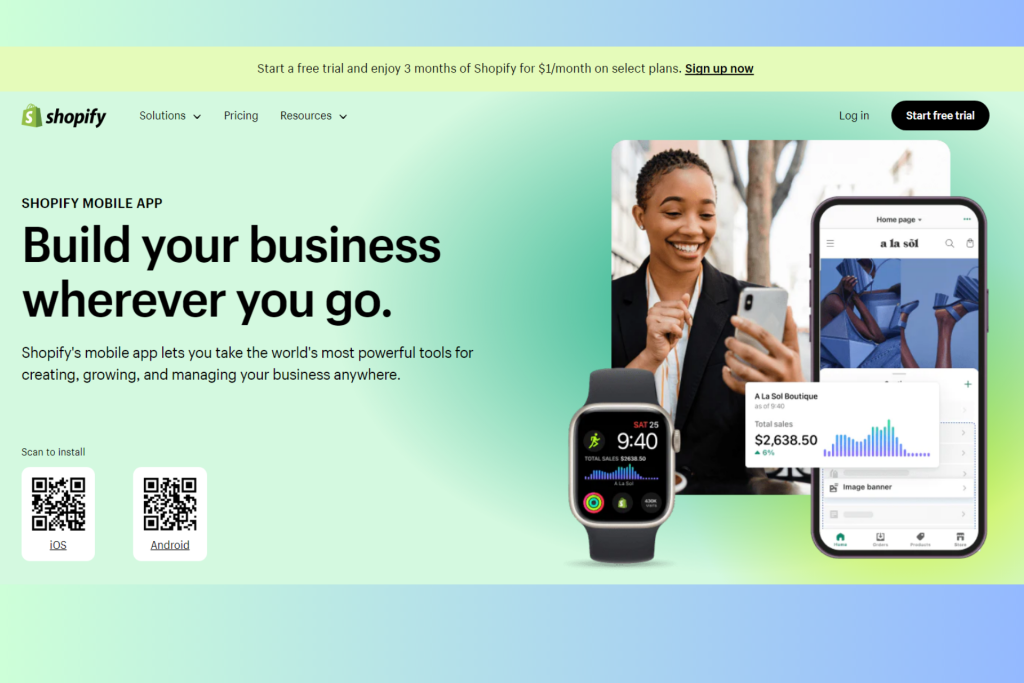
The Shopify mobile app enables you to take the most potent tools available for starting, expanding, and managing your business with you wherever you go. Canadian and American-based retailers may now add shipping to the list of things they can do to operate their businesses from their phones, in addition to everything else. You may purchase and print shipping labels using the Shopify mobile app.
You can manage the complete shipping operation from the palm of your hand and develop and print labels right away or save them to print later. You can start from scratch when making your labels or use our free shipping label template as a guide.
You can use Shopify Mobile to access everything you presently use in Shopify Shipping, including shopify competitive rates for carriers like UPS, DHL Express, USPS, and Canada Post, just inside the Shopify app.
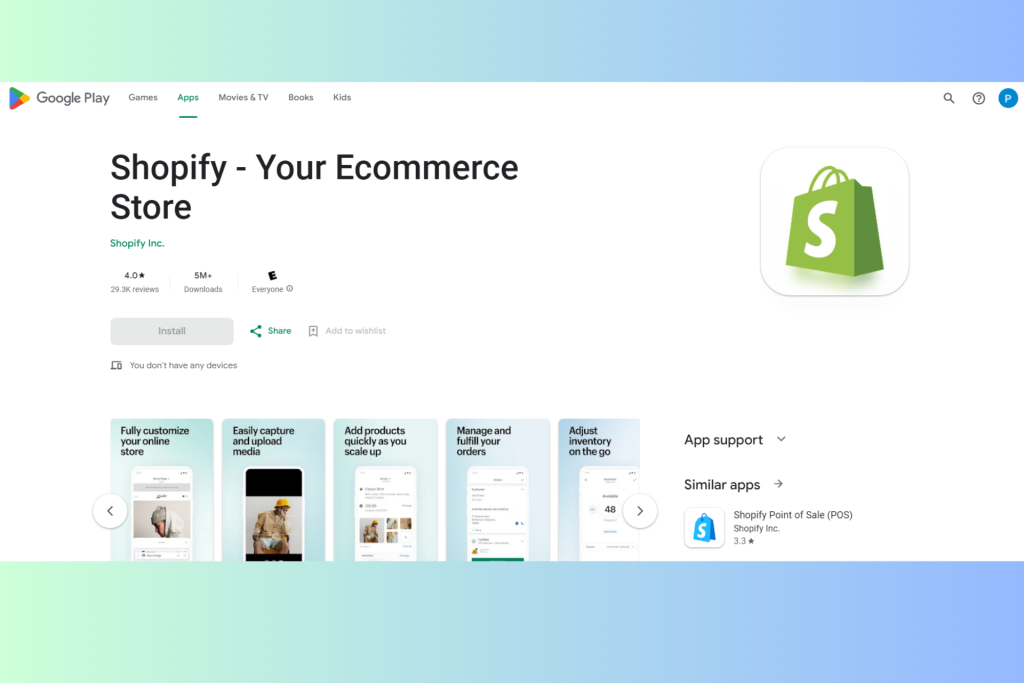
Mobile devices running iOS and Android can download Shopify mobile for free.
Step-by-Step Guide to Printing Shipping Labels
Step1. Download and install the Shopify mobile app
Go to your app store (iOS or Android) and look for the Shopify Mobile App if you haven’t already. Install it on your smartphone after downloading. Utilise your login information to access your Shopify account.
Step2. Access Your Orders
The dashboard of the app will provide you with a brief analysis of your store’s performance once you log in. Go to the “Orders” area and click the “Print Shipping Labels” button. Your most recent orders are listed here.
Step3. Choose an Order
Select the order for which a shipping label has to be printed. To get the order’s information, tap on it.
Step4. Create the shipping label
Locate and touch the “More” option or the ellipsis (…) button under the order information. By doing so, a dropdown menu with different order-related actions will be displayed.
Choose “Create shipping label” from the dropdown menu. After that, Shopify will ask you to select a delivery company and a package type. You can choose a suitable carrier, such as USPS, FedEx, or DHL, depending on your preferences and the nature of the order.
Step 5: Add the shipping information
Step 6: Examine and Verify
Step 7: Get a product and print
Step 8: Stick the Label on and Ship
Benefits of printing shipping labels from your phone
Using the Shopify mobile app to print shipping labels from your phone has several advantages. Some of them are as follows:
- Convenience: Shipping labels can be printed at any time and from any location. This is especially useful if you need to dispatch an order fast while on the run.
- Saving time: You may save a tonne of time by printing shipping labels from your phone. You don’t need to wait to use your computer again or go to a shipping company to print shipping labels.
- Savings: Printing labels from your phone often results in lower shipping costs. This is so that Shopify’s merchants may benefit from lower shipping prices that have been agreed with carriers.
- Peace of mind: You may rest easy knowing that you can print shipping labels from your phone. You can immediately print the label and mail the package if a consumer requires their order shipped right away.
I recommend trying printing shipping labels from your phone if you’re a Shopify merchant. It’s a practical, efficient, and economical approach to complete your orders.
Additional tips
Additional printing advice for shipping labels from your phone is provided below:
- Verify that the Shopify mobile app is compatible with your printer.
- Use printer paper of the highest calibre that won’t smudge or rip.
- Before printing a shipping label for a genuine order, test your printer.
Get your orders out the door quickly and easily by printing shipping labels from your phone. You can reduce delivery time and increase shipping efficiency by doing these actions.
Conclusion
In has never been simpler to use contemporary technology to streamline company processes, and the Shopify Mobile App is a shining illustration of this. Printing shipping labels directly from your phone not only saves time and money but also improves the effectiveness of your e-commerce endeavours as a whole. You may easily manage your shipping procedure, quickly complete customer orders, and always act professionally by adhering to the straightforward methods given in this tutorial.
Adopting such cutting-edge solutions gives business owners the ability to adapt, thrive, and offer top-notch service in a market that is getting more and more competitive. So, take advantage of the Shopify Mobile App’s simplicity as you set off on your journey to customer satisfaction and streamlined shipping processes. Success and growth for your company are only a few taps away.
FAQs about Shopify mobile app’s shipping label printing
Q1. Can I customise the layout of the shipping label?
By using your Shopify settings, you can alter the shipping label template. The PC version may have more customising possibilities, though.
Q2. Is there a limit to the kinds of printers I can use?
You can use a Bluetooth or Wi-Fi printer that is compatible. Make sure it can accommodate the label size you plan to use.
Q3. What if I made a mistake on the shipping label?
You can cancel the label if you make a mistake and then create a new one with the proper information if you do. Shopify offers advice on how to deal with this circumstance.
Q4: Can I track the progress of the shipment after printing the label?
For orders with printed labels, the Shopify Mobile App does indeed offer real-time tracking updates. Direct tracking of the package’s location is possible using the app.
Join us as you begin your Shopify journey
We are e-commerce specialists and Shopify Partners. Get in touch with us if you need assistance with Shopify, need a whole website built, or have any other general questions.